AI as a Tutor for Efficient Data Analysis



Overview
This tutorial introduces four AI-assisted coding tools for scientific data analysis. The focus is on coding-based AI environments, where assistance is integrated directly into tools such as Neovim, RStudio, Jupyter, VS Code, and terminal-based workflows.
This differs from chat-based AI tools, which are useful for discussion, explanation, and planning but are separated from the executable analysis workflow. Coding-based environments allow scientists to generate, inspect, edit, run, debug, and document code in context.
The goal is not only to produce working code faster, but to use AI assistance to support efficient, reproducible, and well-reasoned data analysis.
Tools Covered
This tutorial compares four AI-assisted coding tools that support scientific data analysis in coding-based environments.
- GitHub Copilot: an inline coding assistant that suggests code completions while you type. It is well suited for interactive coding in editors such as RStudio, VS Code, and Neovim.
- Claude Code: an agentic coding assistant that runs in the terminal. It can read project files, edit code, run commands, and help debug or extend an existing analysis workflow.
- Antigravity CLI: Google’s terminal-based coding agent and successor to Gemini CLI. It provides command-line AI assistance for coding, debugging, and project-level development tasks.
- OpenAI Codex CLI: OpenAI’s terminal-based coding agent. It is included for comparison because Codex is one of the major AI coding systems currently used in coding-based workflows.
Each section includes setup notes for both Neovim/tmux and RStudio-based workflows. The same simple data-analysis exercise is used across tools so participants can compare how each environment supports code generation, editing, execution, debugging, and documentation.
By working through the sections, participants can evaluate which AI coding environment best fits their own analysis style, technical comfort level, and reproducibility needs.
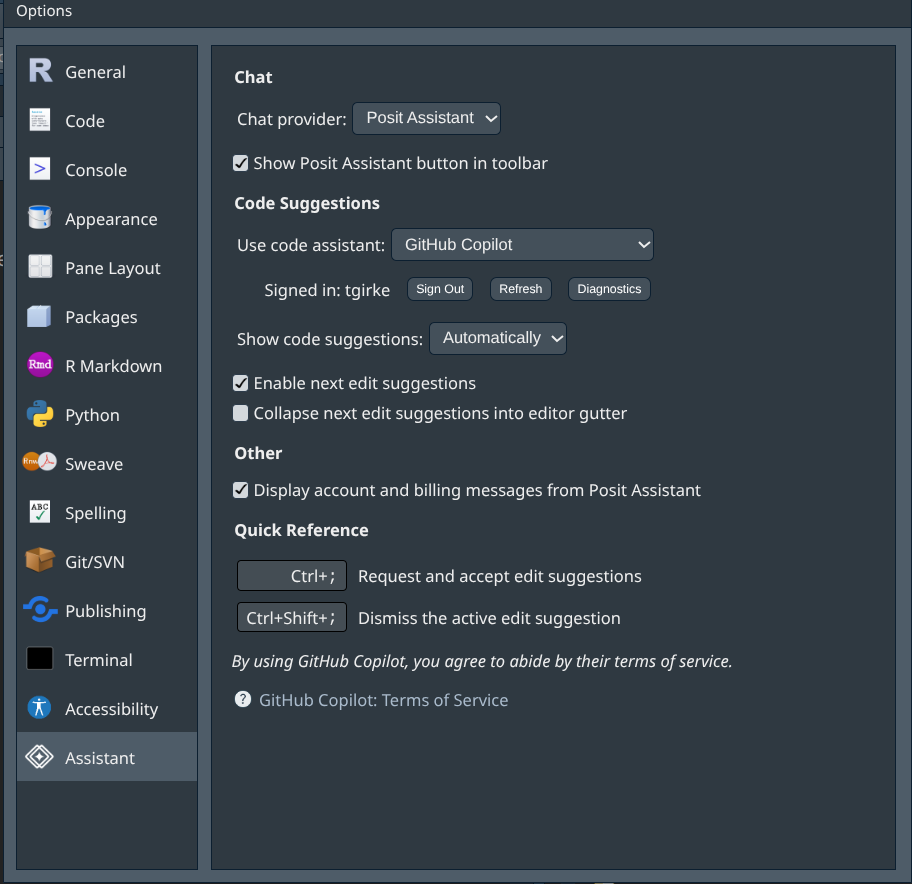
RStudio now includes Posit Assistant, an IDE-integrated AI assistant. It is not covered as a separate tool in this tutorial, but it is useful for interactive RStudio work because it can use live session context, including loaded objects, console output, and the current environment.
For this tutorial, the main distinction is that Posit Assistant is best suited for session-aware exploratory work inside RStudio, whereas terminal-based AI coding agents such as Claude Code, Antigravity CLI, and OpenAI Codex CLI are better suited for file-based coding, larger scripts, project-level edits, and workflows on desktops, remote servers, HPC clusters, or cloud systems.
Posit Assistant and Claude Code also require separate subscriptions. A Posit AI subscription does not provide access to Claude Code, even if Claude models are used behind the Posit AI service.
Installation
This section covers manual installation of all four tools. Going through each step explicitly is intentional — understanding what you are installing and why makes it easier to debug problems and adapt to future changes.
The tabs below cover each tool in sequence. Note that Claude Code does not require Node.js — it uses its own native binary installer. Copilot and Antigravity CLI both require Node.js 20 or higher, so the Node.js tab should be completed first if you plan to use either of those tools.
| Tool | Node.js required | Install method |
|---|---|---|
| Claude Code | No | curl native installer |
| Copilot (Neovim) | Yes (18+) | lazy.nvim plugin |
| Copilot (RStudio) | No | Built-in, enable in settings |
| Antigravity CLI | Yes (20+) | npm install -g |
| Codex | Yes (20+) | npm install -g |
Select the tab above for the tool you want to install:
- Node.js — required prerequisite for Copilot, Antigravity CLI, and Codex (not needed for Claude Code)
- Claude Code — conversational terminal agent; most powerful option; requires paid account
- Copilot — inline code completion; free for students and educators via GitHub Education
- Antigravity CLI — Google’s terminal agent; free tier available with Google account
- OpenAI Codex — OpenAI’s chat and terminal agent; widely used reference tools
nvim-R-Tmux users: the setup_ai_tools.sh script, that is introduced in the Linux tutorial and hosted in the nvim-R-Tmux repository, installs Claude Code, but not Antigravity CLI and Copilot. The install instructions in this section covers all four AI tools including Node.js.
Both Copilot and Antigravity CLI require Node.js 20 or higher. Claude Code does not require Node.js. Check first:
If Node.js is missing or outdated, install it via nvm (Node Version Manager). This installs entirely within your home directory — no root access needed:
# Install nvm
curl -o- https://raw.githubusercontent.com/nvm-sh/nvm/v0.40.0/install.sh | bash

# Reload shell configuration
source ~/.bashrc

# Install latest LTS version of Node.js
nvm install --lts

# Verify
node --version
npm --version
HPCC: check whether Node.js is available as a module before installing via nvm:
module avail node     # search all available modules
module load nodejs     # load required version (here default)
node --version
Upgrading an existing Node.js installation: if you have an older version installed (e.g. at /usr/local/bin/node), nvm will shadow it automatically since it prepends its own path to $PATH. After installing via nvm, verify the correct version is active:
which node      # should show ~/.nvm/versions/node/.../bin/node
node --version  # should show v20.x or higher
If which node still shows the old path, ensure nvm’s init lines are in ~/.bashrc:
ChromeOS / Crostini note: nvm installs cleanly in the Debian Linux container on ChromeOS. No special steps needed beyond the commands above.
Claude Code installs a native binary — no Node.js required:
# Install
curl -fsSL https://claude.ai/install.sh | bash

# Add to PATH if not done automatically
echo 'export PATH="$HOME/.local/bin:$PATH"' >> ~/.bashrc
source ~/.bashrc

# Verify
claude --version

# Authenticate — opens browser prompt, one time only
claude
Account requirement: Claude Pro (paid account) or API access via console.anthropic.com (pay per token). The free Claude.ai plan does not include Claude Code.
HPCC: redirect the cache directory to bigdata to avoid home quota issues:
Account requirement: free for students and educators via GitHub Education (education.github.com). Sign up with your .edu email address.
Neovim/tmux
Add the following plugin block to ~/.config/nvim/init.lua inside the require("lazy").setup({...}) call, just before the closing }, { that starts the lazy options table:
{
  "zbirenbaum/copilot.lua",
  lazy  = false,
  cmd   = "Copilot",
  event = "InsertEnter",
  config = function()
    require("copilot").setup({
      suggestion = {
        enabled      = true,
        auto_trigger = false,   -- change to true for automatic suggestions
        keymap = {
          accept  = "<M-l>",    -- Alt-l to accept
          next    = "<M-]>",    -- Alt-] next suggestion
          prev    = "<M-[>",    -- Alt-[ previous suggestion
          dismiss = "<C-]>",    -- Ctrl-] dismiss
        },
      },
      panel     = { enabled = false },
      filetypes = {
        r        = true,
        rmd      = true,
        quarto   = true,
        python   = true,
        markdown = true,
        ["*"]    = false,       -- disable for all other filetypes
      },
    })
  end,
},
Then inside Neovim, install the plugin and authenticate:
Restart Neovim, then run:
A floating popup will appear in Neovim showing a one-time device code and URL. Copy the code, open https://github.com/login/device in your browser, paste the code and authorize.
ChromeOS / Crostini note: the browser cannot open automatically from the terminal in ChromeOS. Before running :Copilot auth, first unset any GH_COPILOT_TOKEN environment variable that may be set:
Then open a fresh Neovim session and run :Copilot auth — the popup will appear inside Neovim with the device code. Copy it and authorize manually in the ChromeOS browser.
CopilotChat (Neovim/tmux)
CopilotChat adds a conversational chat window to Neovim — similar to Claude Code but using your Copilot subscription. It requires copilot.lua to be installed first. Add this block to init.lua after the copilot.lua block:
{
  "CopilotC-Nvim/CopilotChat.nvim",
  lazy = false,
  dependencies = { "zbirenbaum/copilot.lua", "nvim-lua/plenary.nvim" },
  config = function()
    require("CopilotChat").setup()
  end,
  keys = {
    { "<leader>cc", "<cmd>CopilotChat<cr>",         desc = "Open Copilot Chat" },
    { "<leader>ce", "<cmd>CopilotChatExplain<cr>",  desc = "Copilot: explain selection" },
    { "<leader>cf", "<cmd>CopilotChatFix<cr>",      desc = "Copilot: fix selection" },
    { "<leader>co", "<cmd>CopilotChatOptimize<cr>", desc = "Copilot: optimize selection" },
  },
},
Then :Lazy sync and restart Neovim. No separate authentication needed — CopilotChat uses the same credentials as copilot.lua.
RStudio
Copilot is natively integrated in RStudio 2023.09 and later. It works in RStudio Desktop and RStudio Server (OnDemand). No plugin installation needed. Option names may vary slightly depending on your RStudio version:
- Tools → Global Options → Assistant → Enable GitHub Copilot
- Click Sign In and follow the browser authentication prompt
- Select
ApplyandOK
Antigravity CLI is Google’s terminal coding agent, announced at Google I/O 2026 as the successor to Gemini CLI. Node.js 20+ is required (see the Node.js tab above).
# Install globally
npm install -g @google/antigravity-cli

# Verify
agy --version

# Authenticate with Google account
agy auth
Select Sign in with Google and follow the browser prompt. Use your institutional Google account if you have UC Workspace access.
Note on Gemini CLI: Gemini CLI was sunset on June 18, 2026 for individual and free-tier users. Antigravity CLI (agy) is the direct replacement with an identical interaction model. Existing GEMINI.md and CLAUDE.md project memory files are both recognised by Antigravity CLI without changes.
Codex is OpenAI’s terminal coding agent — similar to Claude Code and Antigravity CLI. It requires Node.js 20+ (see the Node.js tab above) and an OpenAI API paid subscription.
Authentication: Codex uses an OpenAI API key rather than browser login. Get one at platform.openai.com → API Keys, then add to ~/.bashrc:
Start a session:
Neovim/tmux: same tmux pane workflow as Claude Code. Replace claude with codex.
RStudio: Tools → Terminal → New Terminal. Run codex in the terminal tab. No plugin needed.
Key commands — identical to Claude Code and Antigravity CLI:
/init       generate project memory file
/plan       show plan before acting
/clear      reset context
/exit       end session
Note on ChatGPT vs Codex: ChatGPT (browser) operates at stage 3 of the AI assistance spectrum — you copy output manually into your editor. Codex (terminal) operates at stages 4-5 — it reads and writes your files directly, the same as Claude Code and Antigravity CLI.
Before AI: The Code Snippet Approach
Before AI tools existed, the standard workflow for writing unfamiliar code was:
- Search documentation or Stack Overflow for an example
- Copy a code snippet
- Adapt it to your data
- Fix errors by searching again
This works but is slow and passive — you often copy without fully understanding. Here is a simple example problem of looking up a ggplot2 scatter plot:
# Traditional approach: find an example online, copy, adapt
# From Stack Overflow: "ggplot2 scatter plot with color"
ggplot(data, aes(x = var1, y = var2, color = group)) +
  geom_point()
What AI changes: instead of searching for a snippet and adapting it, you describe what you want in plain English and get code tailored to your exact data — and you can ask it to explain every line. The shift is from searching the internet to discussing solutions with AI tool.
The Exercise
Download this aitutor_exercise.R script, open it in your R session and follow the instructions. It includes two sample exercises:
- Simple ggplot2 example using the built-in diamonds dataset
- Slightly more complex volcano plot example using a made-up differential gene expression (DEG) result table
For transparency, the chosen tasks are intentionally overly simple but open-ended. There is no single correct plot. Different tools will make different choices - comparing them is part of the learning.
For testing Claude Code, there also is a CLAUDE.md operational manifest file provided here. This file needs to be saved to the working directory of Claude code.
GitHub Copilot
GitHub Copilot provides inline code completion - suggestions appear as grey ghost text as you type, accepted with a single key press. It is the lowest- friction AI tool to get started with and works inside both Neovim and RStudio.
Cost: Free for students and educators via GitHub Education (education.github.com). Sign up with your .edu email address.
What Copilot does: predicts and completes code based on what you are typing and the surrounding context. It does not run code, does not read your whole project, and does not explain its suggestions unless you ask in a comment.
What Copilot does not do (inline completion alone): it cannot fix errors autonomously, cannot read output, and does not have a conversation.
CopilotChat extends this — it adds a conversational chat window inside Neovim that lets you ask questions, get explanations, and request fixes on selected code. Together, inline completion handles the passive experience and CopilotChat handles the active conversational one — comparable to Claude Code but using your existing Copilot subscription.
Copilot with Neovim/tmux
Setup: see the Installation section above — Node.js, the
copilot.luaandCopilotChat.nvimplugin blocks,:Lazy sync, and:Copilot authare all covered there.
Inline completion usage
Open an R file and start typing. When Copilot has a suggestion, grey ghost text appears after your cursor:
Key         Action
─────────────────────────────────────
Alt-l       Accept the suggestion
Alt-]       Next suggestion
Alt-[       Previous suggestion
Ctrl-]      Dismiss suggestion
Toggling auto-trigger: by default auto_trigger = false in the configuration above, meaning suggestions appear only when you press Alt-]. Change to auto_trigger = true if you prefer suggestions to appear automatically as you type.
CopilotChat usage
Open a chat session from anywhere in Neovim:
Key             Action
──────────────────────────────────────────
Space-cc        Open CopilotChat window
Space-ce        Explain selected code
Space-cf        Fix selected code
Space-co        Optimize selected code
To use with a selection: visually select code in Neovim (V then move), then press the keybinding. CopilotChat opens with the selection as context and you type your question in plain English — the same conversational pattern as Claude Code.
Inside the chat window, Enter sends your message and q closes it.
Exercise: diamonds visualization with Copilot in Neovim
Part 1 — inline completion:
Open a new R file:
Type the following comment and let Copilot complete the code:
Press Alt-] to trigger a suggestion. Review it, press Alt-l to accept, or Alt-] again for an alternative.
Part 2 — CopilotChat:
With the completed code in the buffer, select all lines (ggVG), then type :CopilotChatExplain to open CopilotChat with an explain request. Read the explanation — does it match what the code actually does?
Then ask a follow-up in the chat window:
Suggest one improvement to make this plot more informative.
What would change if the dataset had 10x more points?
Learning tip: the explanation step is where the learning happens. Don’t skip it — understanding why the code works is more valuable than having working code.
Copilot with RStudio
Setup
GitHub Copilot is natively integrated in RStudio 2023.09 and later.
Enable it under: Tools → Global Options → Copilot → Enable GitHub Copilot
Then click Sign In and follow the browser authentication prompt with your GitHub account.
Usage
Once enabled, suggestions appear after typing one or more lines with instructions that start with #, and then pressing Ctrl \. Accept with Tab, dismiss with Escape.
RStudio also adds a Copilot panel in the top-right pane where you can see and browse multiple suggestions.
Exercise: diamonds visualization with Copilot in RStudio
Open a new R script (File → New File → R Script) and type:
Pause after the comment. A suggestion should appear within a second or two. Accept with Tab, or wait for alternatives.
Then type:
Copilot will attempt to write a comment-based explanation. Read it and compare to what you expected.
Claude Code
Claude Code is a terminal-based conversational agent. Unlike Copilot, it does not complete code as you type — instead you give it instructions in plain English and it reads, writes, and runs code in your project directly. It can explain its reasoning, fix errors autonomously, and work across multiple files.
Cost: Claude Pro required (paid account). API access via console.anthropic.com is available pay-per-token with no monthly fee — a lighter option for occasional use. Some labs cover the Pro subscription for their students.
Full setup and workflow documentation: CLAUDE_CODE.md
Claude Code with Neovim/tmux
Setup: see the Installation section above — the
curlinstaller, PATH setup, authentication, and HPCC bigdata redirect are all covered there.
tmux layout
Run Claude Code in one tmux pane, Neovim in another:
┌─────────────────────┬─────────────────────┐
│                     │                     │
│   Claude Code       │   Neovim            │
│   (claude)          │                     │
│                     │                     │
└─────────────────────┴─────────────────────┘Project memory: CLAUDE.md
Every Claude Code project should have a CLAUDE.md manifest file at the repo root. A sample CLAUDE.md file for the exercise used by this tutorial is here. Claude reads this at the start of every session — it contains your conventions, known issues, and any restrictions on file editing.
Session commands
/init       generate CLAUDE.md from repo structure
/plan       show plan before making any changes
/clear      reset context (use between unrelated tasks)
/exit       end session
Resume a previous session:
Git workflow: review every change
Claude Code edits files directly. The recommended workflow uses git to review every change before accepting it:
# 1. Set a baseline commit before starting
git add -A
git commit -m "before: starting exercise"

# 2. Give Claude an instruction
# 3. Claude works and commits

# 4. Review what changed
git diff --stat HEAD~1          # overview of all changed files

# 5. Open the file in Neovim and inspect the diff
:Gvdiffsplit HEAD~1             # side-by-side diff (requires vim-fugitive)
]c / [c                         # navigate between changes
do                              # revert a hunk you don't want
:diffoff | :w                   # exit diff mode and save

# 6. Accept
git add -A && git commit -m "add: diamonds plot"
This workflow is important for learning: reading the diff forces you to understand every change Claude made rather than blindly accepting it.
Exercise: diamonds visualization with Claude Code
Set up a project directory:
mkdir ~/diamonds_exercise && cd ~/diamonds_exercise
git init
echo "## Project\nDiamonds ggplot2 exercise" > CLAUDE.md
git add . && git commit -m "initial"
Start Claude Code:
Give this instruction (also in aitutor_exercise.R script):
Using the diamonds dataset from ggplot2, create an R script called
diamonds_plot.R that visualizes the relationship between carat, price,
and cut. After writing the script, explain what the plot shows and
suggest one improvement. Commit when done.
Watch what Claude does in the terminal — it will describe its plan, write the file, and explain the code. Then review the result:
Open diamonds_plot.R in Neovim and run :Gvdiffsplit HEAD~1 to see exactly what was written. Read every line.
Then ask a follow-up question in the Claude pane:
Why did you choose those specific geoms and aesthetics?
What would change if I used geom_violin instead of geom_point?
This follow-up step is where the real learning happens — Claude will explain the trade-offs, not just produce code.
Plan mode: for larger tasks, use /plan before giving an instruction. Claude describes every file it intends to touch and waits for your approval before making any changes.
Claude Code with RStudio
Claude Code works alongside RStudio without any plugin. Open a terminal tab within your RStudio session (Tools → Terminal → New Terminal) and run Claude in terminal and your code in the RStudio code ecitor. Claude edits files on disk; RStudio detects the changes and prompts you to reload.
The workflow is otherwise identical to the Neovim/tmux version — give instructions in the terminal tab, review changes in the RStudio editor pane.
Exercise
The exercise is identical to the Neovim/tmux version. Use the RStudio terminal tab for the Claude Code session, and the RStudio editor for reviewing files. Run the script with Ctrl+Shift+Enter to verify the plot renders correctly.
Antigravity CLI
Antigravity CLI is Google’s terminal coding agent, announced at Google I/O 2026 as the successor to Gemini CLI. It is structurally similar to Claude Code — conversational, file-aware, and able to run commands.
Cost and access: free tier available with any Google account (rate-limited). The UC system has institutional Google Workspace access — check with your department for current subscription details, as Google’s product naming and access tiers are in active transition as of mid-2026.
Note: Antigravity CLI replaced Gemini CLI on June 18, 2026 for individual and free-tier users. If you have existing Gemini CLI workflows, see the migration guide at antigravity.google/docs/gcli-migration.
Installation and Authentication
Setup: see the Installation section above — Node.js,
npm install -g @google/antigravity-cli, andagy authare all covered there.
Project memory: AGENTS.md
Antigravity CLI uses AGENTS.md as its project memory file — the equivalent of Claude Code’s CLAUDE.md. It also reads CLAUDE.md if present, so existing Claude Code projects work without changes.
Usage
The interaction pattern is identical to Claude Code — plain English instructions in the terminal, Antigravity reads and edits files directly.
Key commands:
/init       generate AGENTS.md
/plan       show plan before acting
/clear      reset context
/exit       end session
Antigravity CLI with Neovim/tmux
The tmux layout is identical to Claude Code:
┌─────────────────────┬─────────────────────┐
│                     │                     │
│   Antigravity CLI   │   Neovim            │
│   (agy)             │                     │
│                     │                     │
└─────────────────────┴─────────────────────┘
Use the same git-based review workflow:
Antigravity CLI with RStudio
Open a terminal tab in RStudio (Tools → Terminal → New Terminal) and run agy there. The workflow is identical to Claude Code with RStudio — Antigravity edits files on disk, RStudio detects changes.
Exercise: diamonds visualization with Antigravity CLI
Give the same instruction as the Claude Code exercise:
Using the diamonds dataset from ggplot2, create an R script called
diamonds_plot.R that visualizes the relationship between carat, price,
and cut. After writing the script, explain what the plot shows and
suggest one improvement. Commit when done.
Review and compare the result to what Claude Code produced. Key questions:
- Did the two tools make the same visualization choices?
- Were the explanations equally clear?
- Which tool’s code would you rather learn from?
OpenAI Codex
OpenAI’s tools cover two distinct interaction modes: ChatGPT (browser-based chat) and Codex (terminal coding agent). They are included here as the most widely used AI tools in the field and a useful reference point for comparison.
Codex: OpenAI’s terminal coding agent, structurally identical to Claude Code and Antigravity CLI. It reads and writes your project files directly, runs code, and iterates on errors. Requires OpenAI API access (paid account) plus an API key.
Cost: ChatGPT free tier available. Codex requires OpenAI API access (paid account) and API key from platform.openai.com.
Installation and Authentication
Setup: see the Installation section above — Node.js,
npm install -g @openai/codex, andOPENAI_API_KEYsetup are all covered there.
Codex with Neovim/tmux
The tmux layout is identical to Claude Code:
┌─────────────────────┬─────────────────────┐
│                     │                     │
│   Codex             │   Neovim            │
│   (codex)           │                     │
│                     │                     │
└─────────────────────┴─────────────────────┘
Use the same git-based review workflow as Claude Code:
Codex with RStudio
Open a terminal tab in RStudio (Tools → Terminal → New Terminal) and run codex there. The workflow is identical to Claude Code with RStudio — Codex edits files on disk, RStudio detects changes.
Exercise: diamonds visualization with ChatGPT / OpenAI Codex
Codex (terminal):
Give the same instruction as the Claude Code exercise:
Using the diamonds dataset from ggplot2, create an R script called
diamonds_plot.R that visualizes the relationship between carat, price,
and cut. After writing the script, explain what the plot shows and
suggest one improvement. Commit when done.
Review and compare across all four tools. Key questions:
- Did ChatGPT and Codex make the same visualization choices as Claude Code and Antigravity CLI?
- How did the copy-paste workflow (ChatGPT) feel compared to the terminal agents (Codex, Claude Code, Antigravity)?
- Which tool’s explanation was most useful for learning?
Comparison: Four Tools Side by Side
| Feature | Copilot (inline) | Copilot + CopilotChat | Claude Code | Antigravity CLI | OpenAI Codex |
|---|---|---|---|---|---|
| Interaction style | Inline completion as you type | Inline + conversational chat | Conversational terminal | Conversational terminal | Browser chat / terminal agent |
| Reads whole project | No | No | Yes | Yes | No / Yes (Codex) |
| Runs code | No | No | Yes | Yes | No / Yes (Codex) |
| Explains reasoning | Limited (via comments) | Yes, in chat window | Yes, on request | Yes, on request | Yes |
| Neovim/tmux support | Plugin | Two plugins | Native terminal | Native terminal | Browser / native terminal |
| RStudio support | Native (built-in) | Native (built-in) | Terminal tab | Terminal tab | Browser / terminal tab |
| Cost | Free (GitHub Education) | Free (GitHub Education) | paid account | Free tier (rate-limited) | Free tier / paid account |
| Best for | Syntax, idioms, fast completion | Completion + explanation without leaving Neovim | Complex tasks, multi-file, research | Free alternative to Claude Code | Widely used reference; Codex comparable to Claude Code |
When to use each
Copilot (inline) is best when you know roughly what you want to write and need help with syntax, patterns, and boilerplate. It is fast, unobtrusive, and works without any context-switching.
CopilotChat extends Copilot with a conversational window — select code, ask a question, get an explanation or fix without leaving Neovim. The key difference from Claude Code is that it doesn’t read your whole project or run code, but for explaining and iterating on code you already have open, it works well and requires no additional subscription beyond Copilot.
Claude Code is best for tasks that require reasoning across the whole project — debugging, refactoring, multi-file changes, and learning why something works the way it does. The conversational model means you can push back, ask follow-ups, and steer the output.
Antigravity CLI is best when you want Claude Code-style capabilities without the subscription cost. The free tier is rate-limited but sufficient for learning and exercises.
Codex is OpenAI’s equivalent Claude Code — a terminal agent with comparable capabilities. If your lab or institution already has OpenAI API access, Codex is a natural choice. The cost of the required paid account is currently the same price as Claude Code.
For most research and teaching workflows, the most productive setup is Copilot running continuously for inline completion, CopilotChat for quick explanations and fixes, and Claude Code or Antigravity CLI for heavier multi-file reasoning tasks.
Using AI as a Tutor: Key Principles
Getting the most educational value from these tools requires deliberate habits. Code generation is the least valuable thing these tools can do.
Ask for explanations, not just code
Instead of:
Ask:
Ask what could go wrong
Challenge the output
Use it to understand errors
When you hit an error, describe it to the AI before asking for a fix:
"I get 'Error in geom_point: aesthetics must be either length 1 or
the same as the data'. What does this mean and why does it happen?"
Understanding the error is more valuable than having it fixed silently.
The review habit
For Claude Code and Antigravity CLI, always review diffs before accepting. The :Gvdiffsplit HEAD~1 workflow in Neovim, or simply reading the changed file in RStudio before running it, forces active engagement with the code rather than passive acceptance.
Further Reading
- Claude Code documentation: https://code.claude.com/docs
- GitHub Copilot for Education: https://education.github.com
- Antigravity CLI documentation: https://antigravity.google/docs
- ChatGPT: https://chatgpt.com
- OpenAI Codex CLI: https://github.com/openai/codex
- nvim-R-Tmux setup (includes Copilot and Claude Code): https://github.com/tgirke/nvim-R-Tmux
- Claude Code workflow guide: https://github.com/tgirke/nvim-R-Tmux/blob/main/CLAUDE_CODE.md